
Your team's progress.
At a glance.
As TikTok Shop creator management software, Star Captain lets you manage your creator team with a written daily report at 16:30 Beijing time and a live view of who's working, editing, or away. Assignments and reviews connect to attendance and payroll.
Star Captain editorial team ·
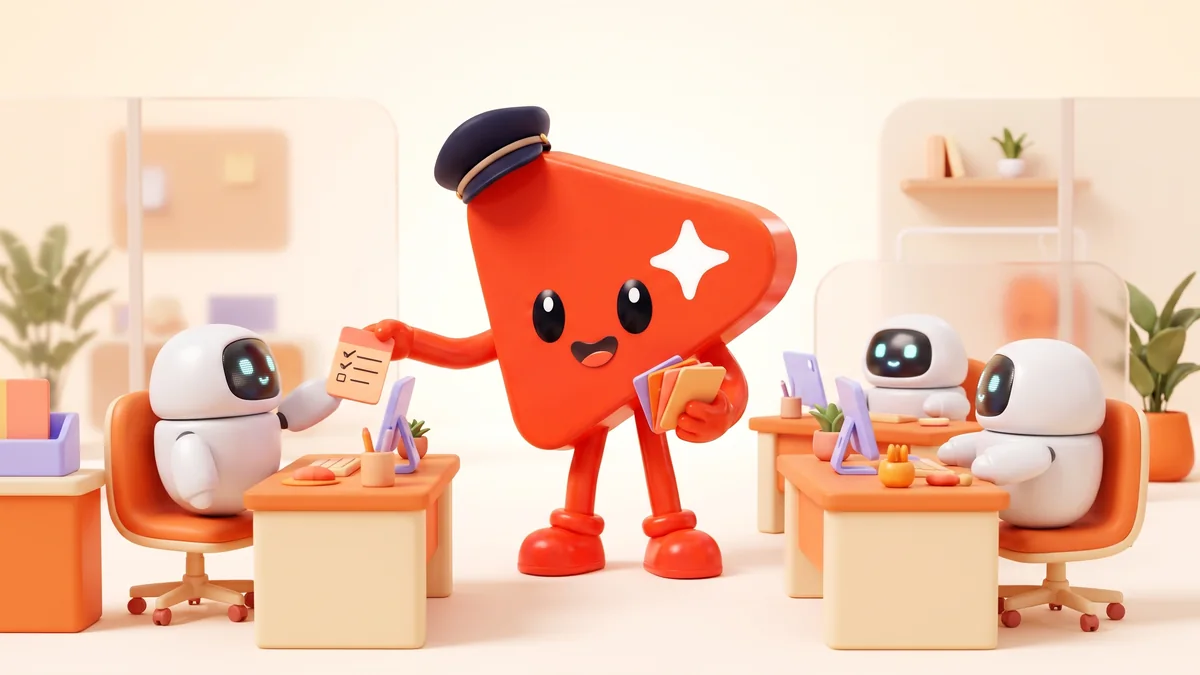
Check in on the whole team
Each group has an office view with a seat for every person. Status labels show work, editing progress, meetings, breaks, away time, off-duty status, and daily output.
- 1Staff update their statusClock in, change status, or add a completed video from the header or personal center. The office view updates with it.
- 2Daily targetsSet one target for the team or individual targets for specific people.
- 3Correct missed clock-insLeads can select a seat to update status or correct clock-in and clock-out times.

From product assignment to approved video
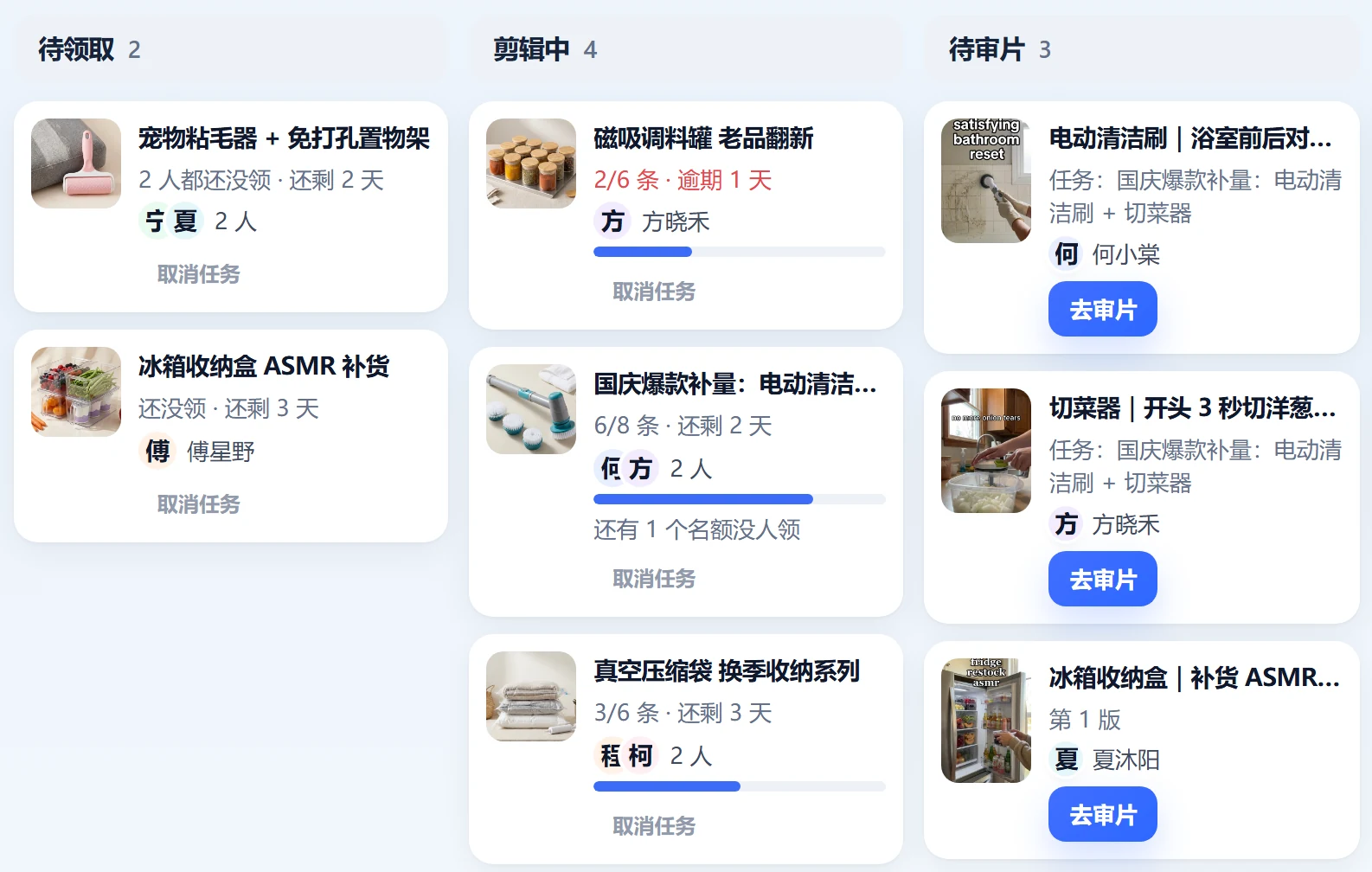
Assign products to a person, group, or shared task pool. Staff upload their edit; reviewers leave frame-specific feedback and approve it or request changes.
- 1Task boardUnclaimed → Editing → In review → Changes requested → Approved. See the owner of each step.
- 2Frame-specific feedbackPause at the exact frame and leave feedback your editor can act on.
- 3Publishing logRecord which account published which product and how many videos. Synced videos help check those records.
 Open full-size image
Turn attendance into payroll inputs
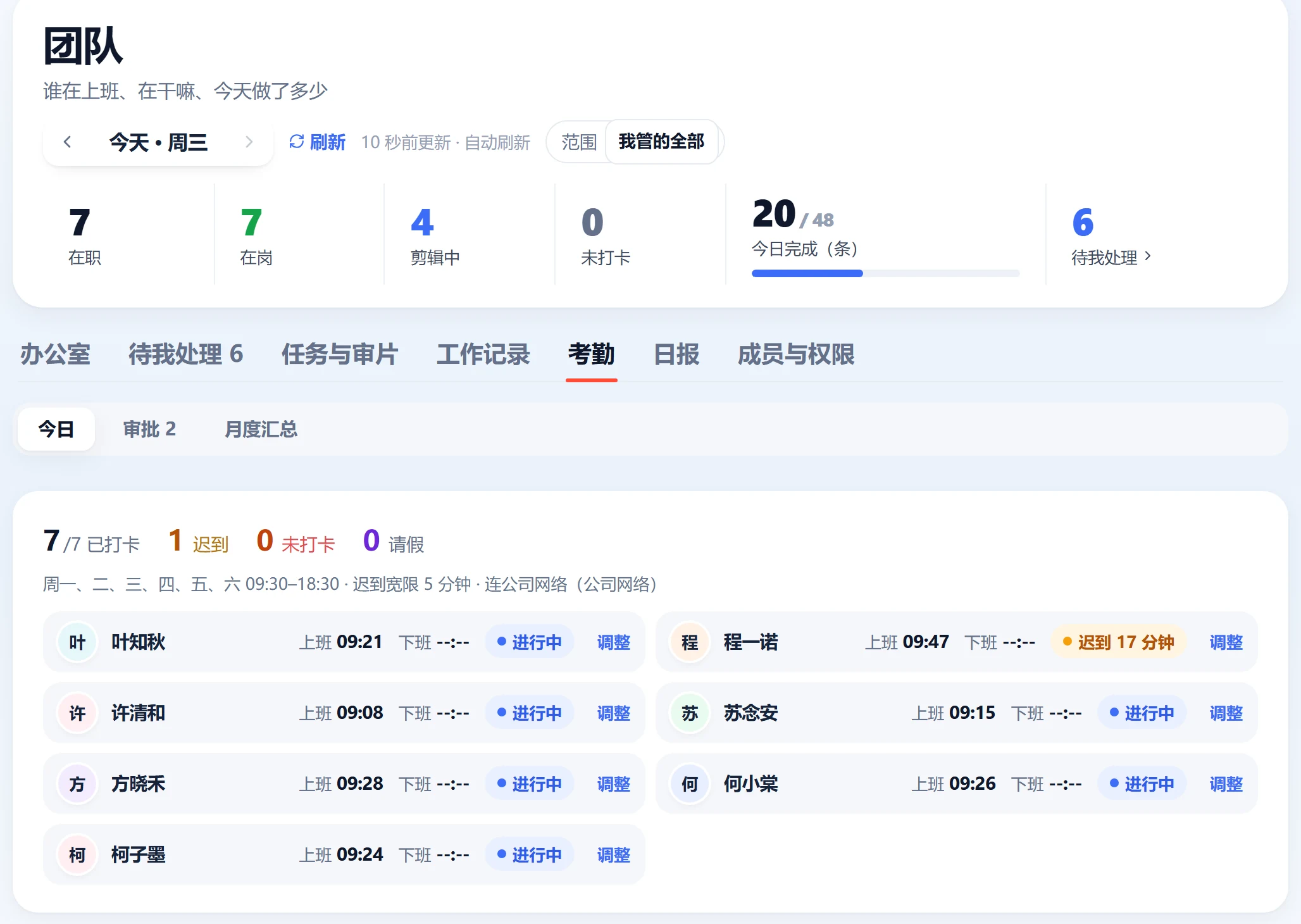
Set working hours, grace periods, clock-in boundaries, and deduction rules. Staff clock in on desktop, request corrections or leave, and month-end totals feed into payroll.
- 1Clock-in boundariesUse an office location and radius or the company network to define where staff can clock in.
- 2Your deduction rulesConfigure late-arrival allowances, late or early deductions, missing clock-ins, and absence rules.
- 3Corrections & leaveSet monthly limits on clock-in corrections. Team leads or owners approve personal, sick, annual, and other leave.
- 4Payroll calculationWhen enabled, monthly attendance feeds base-pay calculations and deductions.
 Open full-size image
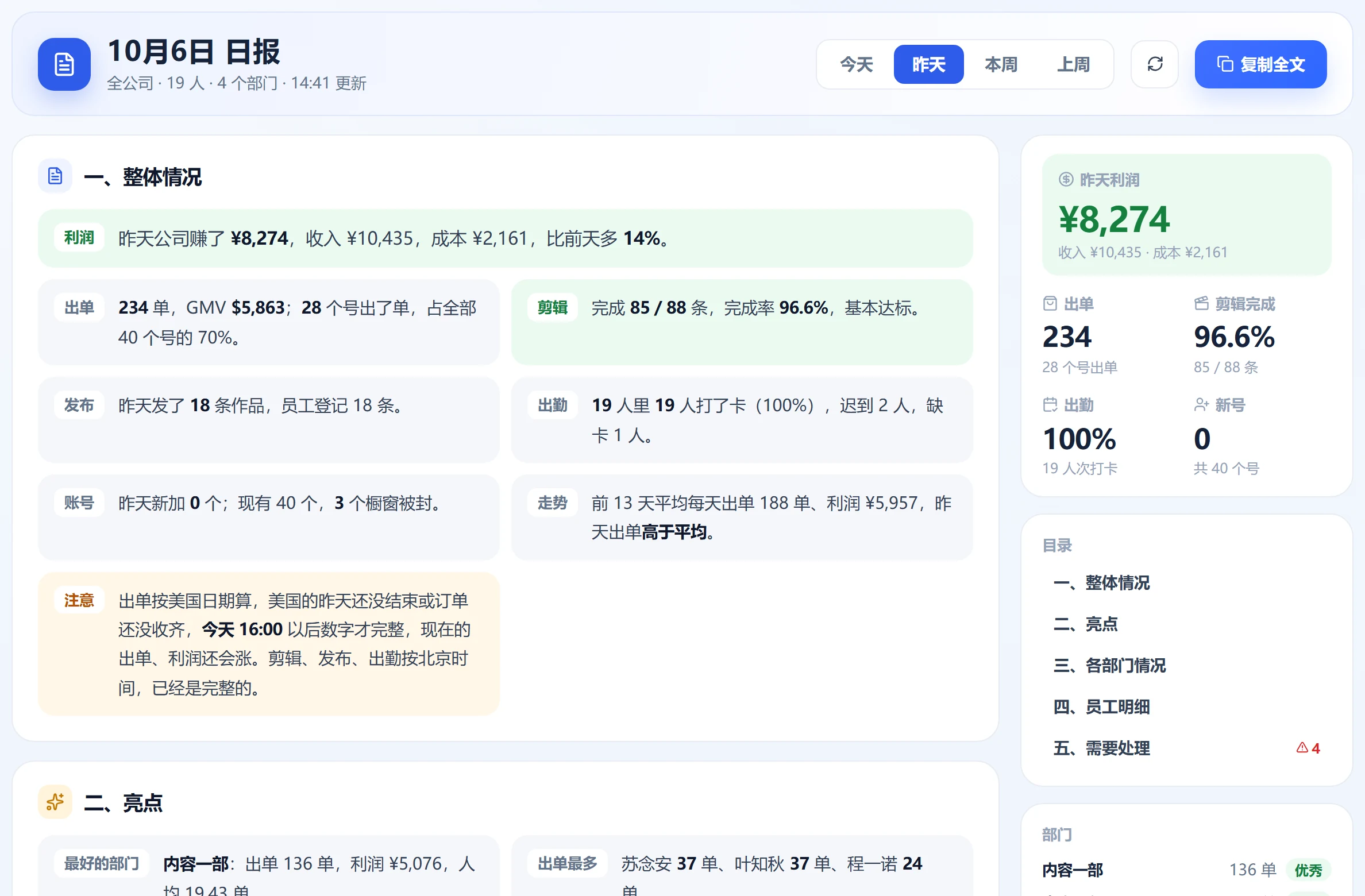
A written report as soon as the previous day is in
At 4:30 PM Beijing time, once orders are in, receive a summary of profit, orders, editing, attendance, publishing, and follow-ups. Copy it to share with the team.
- 1Two reporting calendarsOrders and profit use GMT-8 dates. Editing, publishing, and attendance use Beijing dates, each covering a full day.
- 2Role-based scopeOwners see company-wide performance and profit. Department leads see their own department without profit or costs.
 Open full-size image
Do staff need to keep the page open?
No. Clock in, change status, or add completed work from the header. Mobile web is also available.
Can I import attendance from DingTalk?
Yes. Payroll accepts attendance exports from DingTalk or WeCom, or Star Captain's own clock-in records.
Do review videos stay in storage forever?
No. Approved or replaced video files are removed after 7 days. Rejected files are removed after 30 days without a new upload. Feedback and records remain.
Team management: practical guides
Actionable checklists, from everyday workflows to using Star Captain. Read the full guides in English.
GET STARTED
Your TikTok team. In sync.
Start on the Free plan: unlimited accounts and automatic order sync. Upgrade to Team or Enterprise when you need settlements, payback or team tools.